Is It Down or Just Me? How to Diagnose Website Issues

A step-by-step guide to determining if a website outage is global or local to your device. Learn how to troubleshoot DNS, clear browser cache, and use server status tools.
We have all been there: You click a link, and instead of the page loading, you are met with an endless spinning wheel or an error message. The immediate question is always the same: Is the website actually down, or is it just my internet? Before you panic or restart your router, follow this rapid diagnosis guide to isolate the problem.
First, check the 'Is It Just Me?' checklist. If you can access other websites but not the specific one you are trying to reach, the issue is likely on your end. Start by clearing your browser cache, as stored copies of websites can get corrupted. On Chrome or Edge, press 'Ctrl + Shift + Delete' and select 'Cached images and files'. On Safari, go to Preferences > Privacy > Manage Website Data. Next, try flushing your DNS cache. DNS acts as the phonebook of the internet, and sometimes your computer holds onto an old IP address. For Windows, open Command Prompt and type 'ipconfig /flushdns'. For Mac users, open Terminal and type 'sudo dscacheutil -flushcache; sudo killall -HUP mDNSResponder'. Finally, try a different network; switch off your Wi-Fi and use mobile data to rule out your ISP firewall.
If you have tried these steps and the site still won't load, the problem is likely a global server issue. The fastest way to confirm this is to use a dedicated Server Status Checker tool, which pings the website from multiple locations around the world. You can also search social media for the website's name; if it is a major outage, other users will likely be reporting it. Stop guessing and start knowing by running a quick test on our tool.
Share this article
More Articles
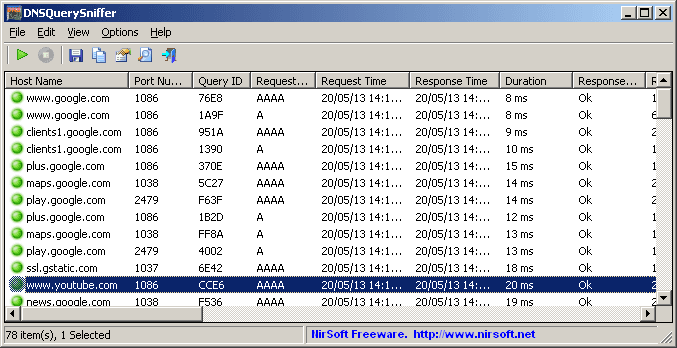
DNS Lookup Tool: Complete Guide to Domain Name System Queries in 2024
2024-12-19
Master DNS lookups with our comprehensive guide. Learn how to check DNS records, troubleshoot domain issues, and optimize your website's DNS configuration for better performance.
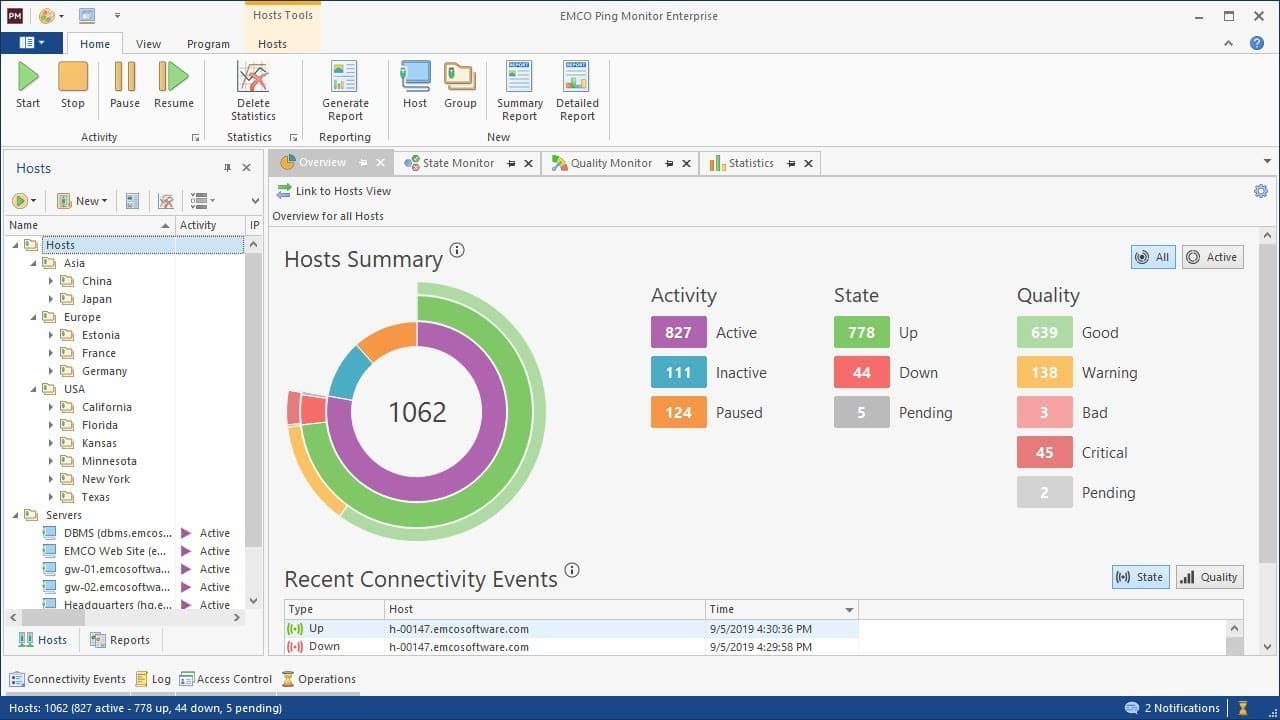
Ping Test Tool: How to Check Server Response Time and Network Latency
2024-12-18
Test your server's response time with our free ping test tool. Measure network latency, diagnose connectivity issues, and ensure optimal server performance for your website.

Internet Speed Test: Check Your Download & Upload Speed Free Online
2024-12-17
Test your internet connection speed for free. Measure download speed, upload speed, and ping latency. Perfect for troubleshooting slow internet and verifying ISP performance.